
We provide several essential network support tools to ensure that your network runs smoothly. These tools can be used for diagnostics, monitoring, and troubleshooting common network issues.
Download and use the tools below and follow the instructions in our guides to get started:
Instructions:
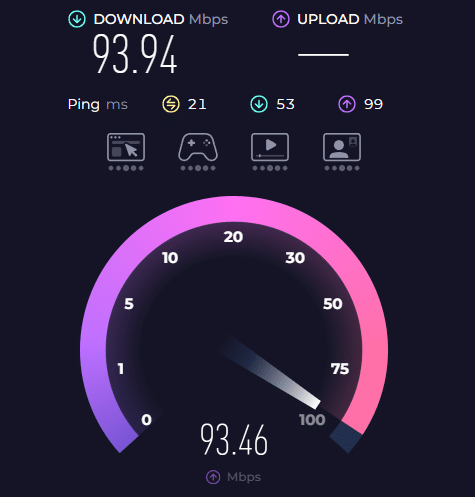
If you need assistance, we offer remote support to help resolve network issues quickly. Follow the steps below to get connected with one of our support specialists:
Step 1: Download the Remote Support Tool
Click the link below to download our remote support tool that allows our technicians to access your system securely.Download Remote Support Tool
Step 2: Install the Tool
Once downloaded, open the file and follow the installation instructions. The tool will ask for permission to access your system; please allow this for remote support.
Step 3: Share Your Access Code
After installation, the tool will generate an access code. Please write down this code and share it with the technician to allow remote access.
Step 4: Troubleshooting Session
Once connected, the technician will begin troubleshooting. They may ask you to perform actions on your system or guide you through steps to resolve the issue.
Step 5: End the Session
After the issue is resolved, the technician will securely end the remote session. You can choose to disconnect at any time during the session.
If you’re unsure about which tool to use for troubleshooting, feel free to contact our support team. We’ll guide you in selecting the appropriate tool for your issue.
Yes! As long as you can connect to the internet, our technicians can access your system remotely and provide troubleshooting and resolution.
Yes, we use secure, encrypted software for remote access. Your data and system are protected during the troubleshooting process.
If you’re facing connectivity issues, network slowness, or require assistance with network configurations or setups, our remote support team can assist you.
If you’re unable to resolve the issue using the tools or guides, or if you require immediate assistance, please contact our support team: